The Create-A-Plan section of this website is a tool designed to help contractors and others responsible for jobsite safety develop a written exposure control plan to protect workers exposed to respirable silica dust and comply with OSHA’s Silica Standards. This planning tool offers users the option of registering so they can confidentially save the plans they create in a format that can be retrieved, edited, renamed and reused at a later date. Only the registered user has access to their saved plans.
However, you do not need to register to use this tool to create a plan. If you do not register or log in, you will still be able to create a plan that can be saved as a PDF, emailed and/or printed.
It’s as easy as 1-2-3…
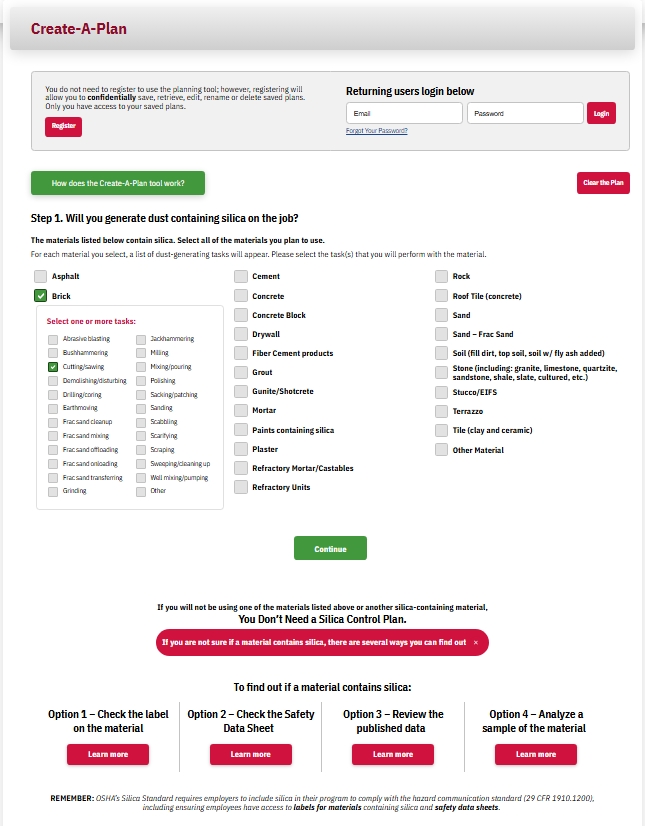
Step 1 – Will you generate dust containing silica on the job?
In this step, you:
- Select one or more materials that will be used on the job or use the “Other Material” option to enter your own. If you are not sure if a material contains silica, this step offers four ways to find out: check the label; check the safety data sheet; review the published data; or analyze a sample of the material.
- Select one or more dust-generating tasks that will be performed with each material or use the “Other” option to enter your own.
To move to Step 2, you must select at least one material and at least one task for that material. Once you have made your selections, the “Continue” button will turn green and be enabled. Click on this button to advance to Step 2. Note: If you change your mind, you can unclick your selections or click the red “Clear the Plan” button.
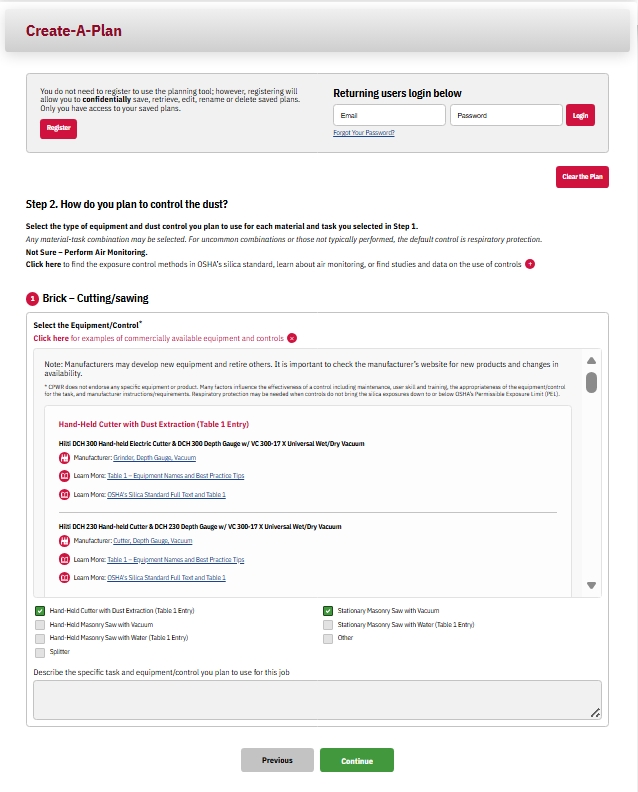
Step 2 – How do you plan to control the dust?
In this step, the information you entered in Step 1 will automatically appear.
- For each material and task combination you selected in Step 1, a list of equipment/control options will appear including an “Other” option space to enter your own. If you are not sure which equipment/control option to use, this step offers four ways to find out: review the exposure control methods specified in OSHA’s Silica Standards; perform air monitoring; review studies and data on the use of controls; or use OSHA’s confidential On-Site Consultation Program.
- Under the heading “Select the Equipment/Control” you will find examples of commercially available equipment/controls and related information by clicking on the “+” icon. Related information may include: whether the option is a Table 1 entry; a video of the equipment/control in use (if available); links to manufacturers; and other sources of information on the equipment/control option. In some cases, directions on how to build your own are provided. Note: In Step 1, if you selected “Other” for the Material and a Task on the list or “Other” for both the Material and Task you will see a complete list of all equipment/control options available in the system when you click on the red “+”. If you selected an uncommon Material-Task combination or a “Material” and the “Other” Task option only information on the default control “Respiratory Protection” will appear.
- You will be able to pick as many equipment/control options as appropriate for your job. For example, you could pick “hand-held masonry saw with vacuum” and “hand-held masonry saw with water.” Space is also available to enter job-specific information on how, when and where the equipment/control(s) will be used, as well as other details to make this plan useful for you and others.
To move to Step 3 you must select at least one equipment/control for each material/task combination. Once you have made your selections, the “Continue” button will turn green and be enabled. Click on this button to advance to Step 3 and complete your plan. Note: If you change your mind, you can unclick your selections or you can use the “Previous” button on the bottom of the screen to go back and change a selection in Step 1. To start completely over and clear all of your entries in Steps 1 and 2, click the red “Clear the Plan” button.
Step 3 – Complete your Silica Control Plan.
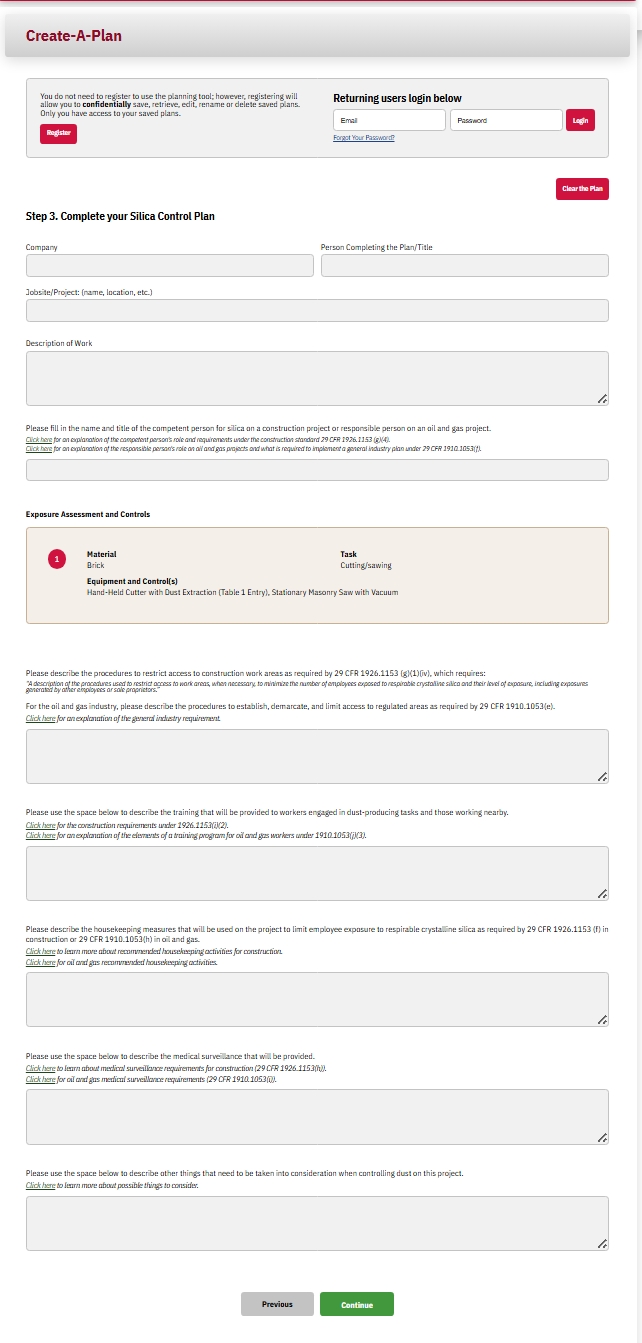
In this final step, space and prompts are provided for additional information to include in your plan and help you comply with the OSHA Silica Standard applicable to your work:
- Company name, project name and description, and the person completing the plan
- The competent person for construction projects or the responsible person for oil & gas projects who will ensure the plan is carried out
- Procedures for restricting access (construction projects) or establishing a regulated area (oil & gas) to minimize exposures
- Training that will be provided for workers and others
- Housekeeping activities
- Medical surveillance
- Other considerations.
Each section includes an option to “Click here…” for the types of information to consider including.
Only the sections that you complete will appear on your Final Plan.If you need to change a selection in Step 1 or edit a selection or text box in Step 2, click the “Previous” button at the bottom of the page to go back. Or if you want to start completely over and clear all of your entries in Steps 1, 2 and 3, click the “Clear the Plan” button at the top of the page.
Once you have reviewed all your entries, click on the “Continue” button on the bottom of your screen to generate your completed Silica Control Plan. It is important to note that even at this stage you still have the ability to go back and edit your work by using the “Previous” button at the bottom of the page.
Once you are comfortable with all of your entries, you will have the option to print, email, or download and save a PDF version. Or by registering and logging in, you will have the option of confidentially saving your plan to retrieve, edit, and/or rename as a new plan at a later date.
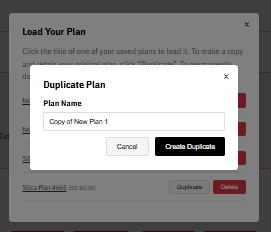
To avoid overwriting an existing plan, remember to click on “Load a Saved Plan” and then click “Duplicate”. You will be prompted to save it as a copy or you can give the plan a new name. Click the “Create Duplicate” button to create a copy or enter a new plan name.
This is YOUR Plan.
Remember – you can also use this plan as a Toolbox Talk for the job!